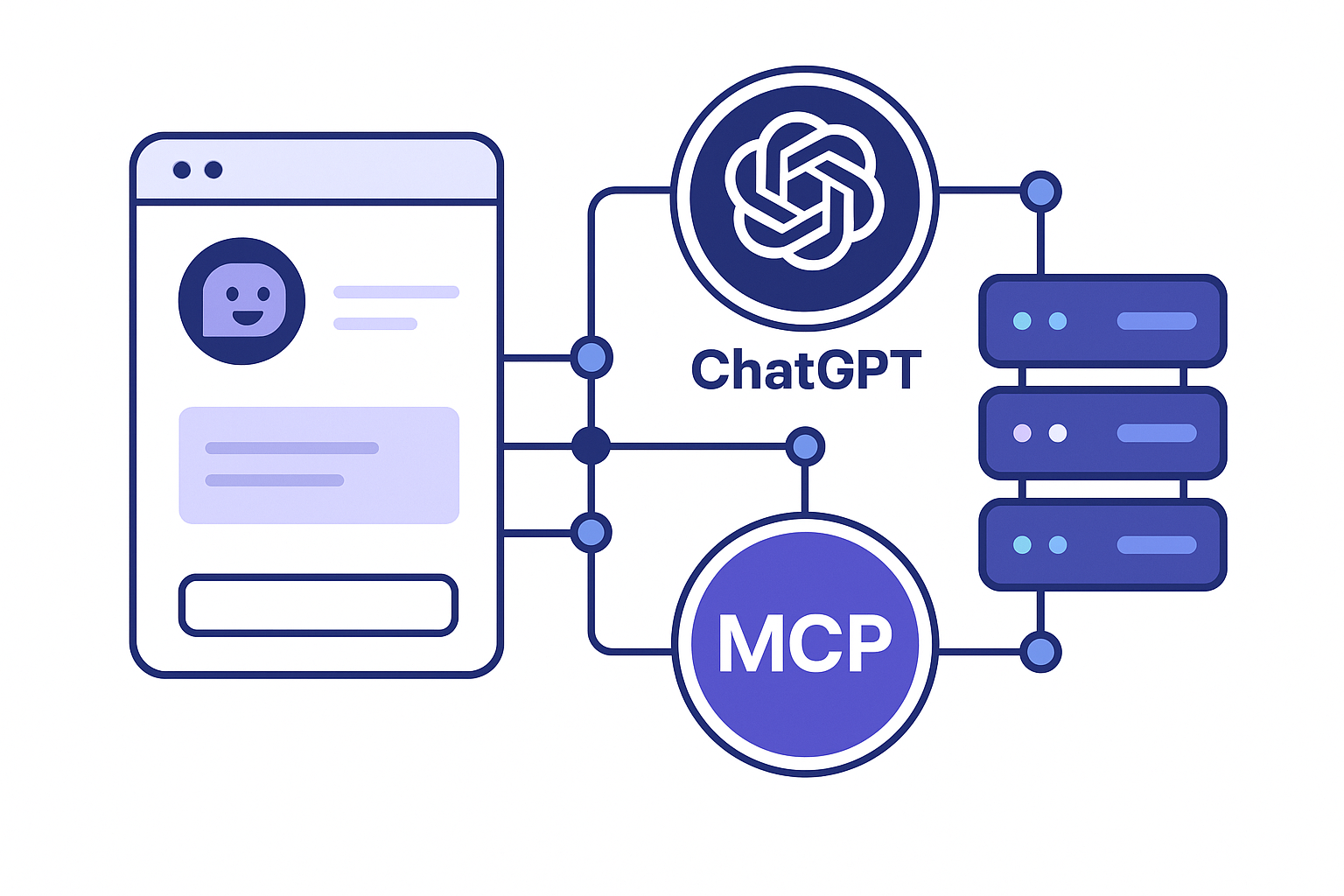
The Model Context Protocol (MCP) is one of the most powerful new features in modern AI workflows. It allows you to connect external tools, APIs, and data sources directly to ChatGPT, similar to giving it custom plugins that you fully control.
In this step-by-step guide, you’ll learn how to:
- Enable Developer Mode in ChatGPT
- Add and configure your MCP server
- Activate the MCP server inside a ChatGPT conversation
- Optionally test your MCP server in the API Playground
- Troubleshoot common connection issues
Who is this guide for?
Anyone who wants to connect custom tools or APIs to ChatGPT using MCP — whether you are a developer, technical PM, or power user.
Table of Contents
- What You Need
- What MCP Does (Simple Explanation)
- Step 1 – Enable Developer Mode in ChatGPT
- Step 2 – Add Your MCP Server to ChatGPT
- Step 3 – Enable the MCP Server Inside a Chat
- Step 4 – Optional: Test Using the API Playground
- Troubleshooting (Common Issues)
- Frequently Asked Questions (FAQs)
- Final Notes
1. What You Need
Before you connect an MCP server to ChatGPT, make sure you have the following:
- A ChatGPT Plus or Pro account (for Developer Mode and connectors)
- An MCP-compatible server (remote HTTPS endpoint)
- Basic connection details:
- Server URL (HTTPS)
- Authentication type (No Auth / OAuth / other, depending on your setup)
- OAuth credentials, if required (client ID, secret, redirect URL configured correctly)
Pro Tip: If you don’t have an MCP server yet, start with a sample implementation from a tutorial or GitHub repo. You can swap in the URL later for your production server.
2. What MCP Does (Simple Explanation)
Think of MCP as a standardized way to let AI models call tools safely and consistently.
With an MCP server connected, ChatGPT can:
- Call your internal or external APIs
- Read and write data in your systems (depending on what you expose)
- Trigger workflows, automations, and custom business logic
- Access private databases, ticketing systems, CRMs, etc.
In ChatGPT, MCP servers are surfaced as connectors that you can enable on a per-chat basis.
3. Step 1 – Enable Developer Mode in ChatGPT
Developer Mode must be turned on before you can add or manage custom MCP servers.
Steps to enable Developer Mode:
- Open ChatGPT in your browser and sign in.
- Click your profile picture or name in the bottom-left corner.
- Click Settings.
- Navigate to the Connectors or Developer section (depending on the current UI).
- Toggle Developer Mode to ON.
Security Reminder:
Only connect MCP servers you trust. An MCP server with write access could modify data in your systems, depending on the tools you expose.
4. Step 2 – Add Your MCP Server to ChatGPT
With Developer Mode enabled, you can now register your MCP server as a connector.
Steps to create a connector:
- In ChatGPT, go to Settings → Connectors.
- Click Create connector or New connector.
- Fill in the connector details:
- Name: A clear title, e.g. “Internal Tools MCP”.
- Description: (Optional) Short description of what this server does.
- Base URL / MCP server URL: The HTTPS endpoint your MCP server exposes (e.g.
https://your-mcp-server.com/v1/sse).
- Select the Authentication type:
- No Authentication for testing or public endpoints.
- OAuth or another method for production-grade secure servers.
- Click Save, Create, or equivalent.
- If using OAuth, complete the login and authorization flow in the browser.
Example MCP server URL format:
https://your-mcp-server.com/v1/sse
Once saved, your MCP server should now appear in your list of connectors in ChatGPT’s settings.
5. Step 3 – Enable the MCP Server Inside a Chat
Creating a connector is not enough on its own. You must explicitly enable the MCP server for each conversation where you want to use it.
Steps to enable the MCP connector in a chat:
- Open a new chat in ChatGPT.
- In the message compose area, click the “+” icon.
- Select More → Developer mode.
- You’ll see a list of available connectors.
- Toggle your MCP connector (e.g. “Internal Tools MCP”) to ON for this conversation.
Example prompt to test your MCP server:
Use my MCP server to list all items using the `list_items` tool.
When you send this, ChatGPT will:
- Recognize that the MCP server you connected has a suitable tool (e.g.
list_items). - Propose a tool call and show you the parameters.
- Ask you to confirm the call (depending on the UI and permissions).
- Execute the tool and then return a natural-language summary of the response.
Note: The connector remains active only for the current conversation. For a new chat, you may need to enable it again via Developer mode.
6. Step 4 – Optional: Test Using the API Playground
If you want more control and visibility into what’s happening between ChatGPT and your MCP server, use the OpenAI API Playground (or similar tools) for debugging.
How to connect your MCP server in the Playground:
- Open the OpenAI API Playground in your browser.
- Create a new Responses or Agent session (depending on your UI).
- Go to the Tools section.
- Click Add Tool, then select MCP Server.
- Enter the same HTTPS endpoint that you used in ChatGPT.
- Save and start sending test prompts that trigger your MCP tools.
This lets you inspect logs, review request/response structures, and validate that your MCP server tools are exposed correctly before letting non-technical users rely on them.
7. Troubleshooting (Common Issues)
Issue 1: Developer Mode is not available
- Confirm that you’re using a Plus or Pro ChatGPT plan.
- Make sure you’re on the web version, not only the mobile app.
- If the setting still doesn’t appear, it may be a phased rollout. Check OpenAI documentation or announcements.
Issue 2: ChatGPT can’t reach your MCP server
- Double-check your URL for typos and ensure it starts with
https://. - Verify that your server is publicly reachable (no VPN-only access or blocked ports).
- Ensure your MCP implementation supports the expected protocols (often SSE/streaming).
Issue 3: OAuth fails or loops
- Confirm that your redirect URI in the identity provider exactly matches what ChatGPT/your connector expects.
- Check the client ID, client secret, and scopes.
- Regenerate secrets if you suspect they may have been misconfigured.
Issue 4: Tools aren’t visible or don’t run
- Ensure your connector is enabled in the current chat under Developer mode.
- Check that your MCP server returns a correct tool list / manifest in the MCP protocol.
- Test your tools directly via logs or the API Playground for more detailed error messages.
8. Frequently Asked Questions (FAQs)
Q1: Do I need to be a developer to use an MCP server in ChatGPT?
Answer: You don’t have to write the MCP server yourself, but you do need access to one. Many organizations or open-source projects provide ready-made MCP servers. As long as you have the URL and any necessary credentials, you can follow this guide to connect it.
Q2: Can I use my MCP server with the ChatGPT mobile app?
Answer: Yes. Once your connector is created on the web version of ChatGPT, it typically appears under the same account on mobile as well. You may still need to enable it per conversation, just like on the web.
Q3: What’s the difference between local and remote MCP servers?
Answer: A local MCP server usually runs on your own device and may be used by desktop clients. A remote MCP server is hosted on the internet and accessed via HTTPS. This guide focuses on remote servers, which are ideal for shared and production environments.
Q4: Can I reuse the same MCP server with different AI platforms?
Answer: Yes. MCP is designed as a standard protocol. In many cases, the same MCP server can be integrated with multiple AI clients, as long as they all support MCP.
9. Final Notes
By following this guide, you have:
- Enabled Developer Mode in ChatGPT
- Created and configured a connector for your MCP server
- Activated your MCP tools inside a ChatGPT conversation
- Optionally tested your server through the API Playground
This setup lets ChatGPT call your own tools, APIs, and workflows as if they were built-in capabilities. It’s a powerful way to bring your organization’s data and processes directly into conversational AI.