
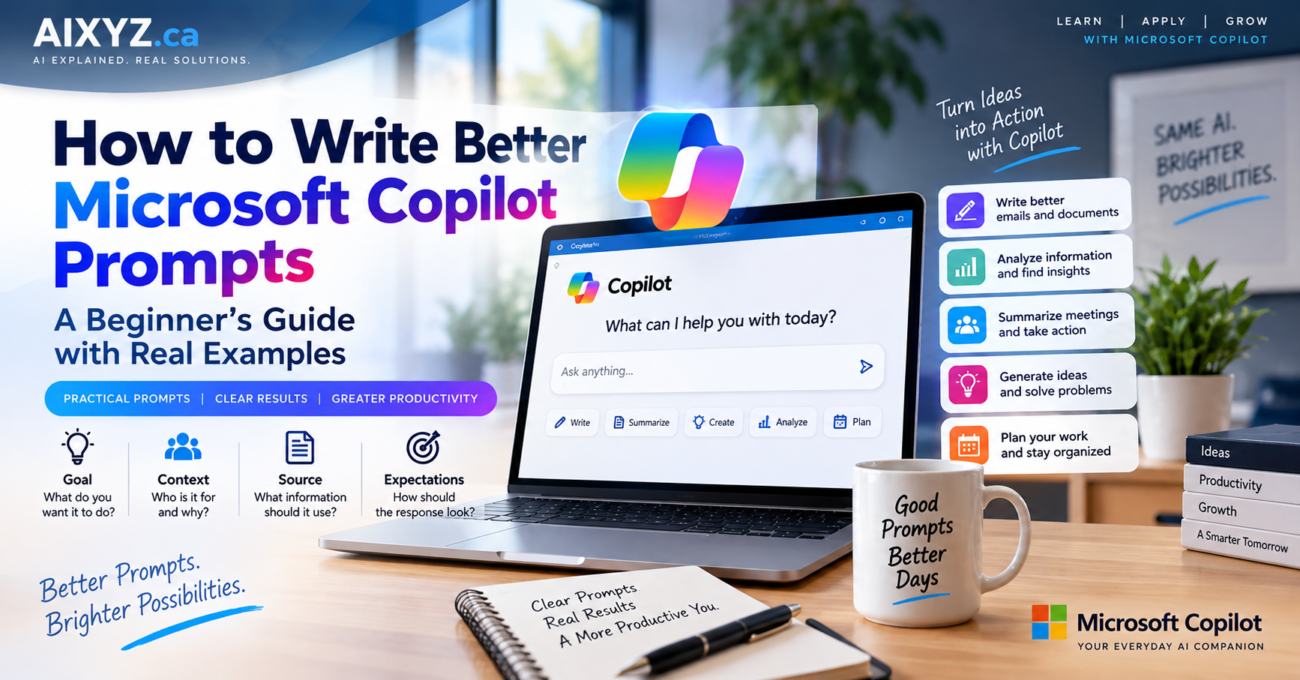
Have you ever asked Microsoft Copilot to “write an email” and received a response that sounded generic, missed important details, or needed several rounds of editing? The problem may not be the AI tool. Often, the instruction simply does not explain the result you want.
A good prompt tells Copilot what to do, why you need it, what information to use, and what a successful answer should look like. You do not need programming knowledge or special AI terminology to write one. In this guide, you will learn a practical four-part framework, work through real examples, and leave with prompts you can adapt for writing, meetings, research, documents, and everyday planning.
New to Copilot? Begin with Article #1: What Is Microsoft Copilot? and continue with Article #2: Microsoft Copilot vs. Microsoft 365 Copilot. If either article is not yet live, replace its link with the published URL.
1. What is a Microsoft Copilot prompt?
A prompt is the question or instruction you enter into Copilot. It can be as simple as “Explain cloud computing” or as detailed as a request to draft a report for a particular audience using a specific source document. Microsoft recommends giving Copilot a clear goal and adding context, a source, and expectations when useful. You can also improve an answer through follow-up prompts rather than attempting to write one perfect instruction on the first try.
Vague: “Write a project update.”
Specific: “Draft a 150-word project update for a non-technical client. Explain that testing is complete, user training begins next Tuesday, and go-live remains subject to final approval. Use a professional, reassuring tone. Do not invent dates or results.”
The second prompt gives Copilot enough direction to produce a more relevant draft. You still need to check the facts before sharing it.
2. The four elements of a useful prompt
Microsoft’s official prompting guidance describes four useful ingredients: goal, context, source, and expectations. You do not need all four every time; a clear goal is the starting point.
| Element | Question to answer | Example |
|---|---|---|
| Goal | What should Copilot do? | Draft a follow-up email. |
| Context | Who is it for, and why? | It is for a customer who attended a product demonstration yesterday. |
| Source | What information should it use? | Use the three meeting notes pasted below. |
| Expectations | What should the response look like? | Under 150 words, friendly and professional, with a clear next step. |
A reusable prompt template
Help me [goal]. This is for [audience and context]. Use [the information, document, or sources I provide]. Return the result as [format, length, and tone]. [State any constraints, such as not inventing missing facts.]
For example: “Help me prepare a five-minute introduction to cybersecurity for new employees. Use the training outline below. Write in simple language, include two everyday examples, and finish with three questions to check understanding. If the outline does not cover something, flag the gap instead of making it up.”
3. Tutorial: Improve a prompt in three rounds
Open Microsoft Copilot, or your organization’s approved Copilot Chat experience. For this exercise, use a fictional scenario rather than confidential workplace data.
Round 1: Start with a simple request
Write a meeting agenda.
Read the response. It may be broadly useful, but Copilot does not know the audience, meeting objective, or time available.
Round 2: Add the situation and desired format
Write a 30-minute agenda for a weekly software-project status meeting with a project manager, developer, tester, and client representative. Cover progress, open issues, upcoming milestones, and decisions required. Show the minutes allocated to each section in a table.
Compare the two answers. The second should be easier to use because it defines the meeting, participants, topics, duration, and output format.
Round 3: Refine the answer
Revise the agenda so that decisions and blockers appear before general updates. Reserve five minutes for confirming owners and due dates. Keep the total meeting time at 30 minutes.
Lesson: Prompting is a conversation. Ask Copilot to improve the parts that do not meet your needs instead of starting again every time.
4. Five copy-ready Copilot prompts for everyday work
Replace the details in square brackets with your own information. Do not put confidential data into a personal AI account unless your organization permits it.
Prompt 1: A clear customer email
Draft a follow-up email to [customer name or role] about [topic]. We last discussed [brief context], and the next step is [action]. Keep it friendly and professional, under 130 words. Include a subject line and a clear call to action. Use only the facts I have provided, and mark any missing details as [confirm].
Why it helps: It identifies the recipient, purpose, facts, tone, length, and next action. Review the message before sending it yourself.
Prompt 2: A simple explanation of a difficult topic
Explain [topic] to a beginner who has no technical background. Start with a two-sentence definition, give three real-life examples, explain one common misunderstanding, and finish with three short quiz questions. Avoid jargon, and define any technical word you must use.
Why it helps: It specifies the reading level and teaching structure instead of merely asking for a definition.
Prompt 3: A meeting summary from notes
Use only the meeting notes pasted below. Create a summary with four sections: decisions, action items, owners and due dates, and unresolved questions. Present action items in a table. If an owner or due date is not in the notes, write “not specified.” Do not invent decisions or commitments. Notes: [paste approved notes].
Why it helps: It makes missing information visible rather than allowing a polished but inaccurate summary to hide gaps.
Prompt 4: Research with verifiable sources
Research [topic] as of [date] for an audience of [audience]. Explain the three most important developments, why each matters, and what is still uncertain. Link to original primary sources and include publication dates. Distinguish announcements from features that are already available. If you cannot verify a claim, say so.
Why it helps: It asks for traceable evidence and avoids treating an announcement as proof that a feature is available to everyone. Open the cited sources and verify them.
Prompt 5: Build a realistic weekly work plan
Create a Monday-to-Friday work plan for these tasks: [task list]. I work from [start time] to [end time], and my fixed meetings are [times]. Put priority tasks first, include breaks and buffer time, and present the result in a daily table. If the tasks cannot fit in the available hours, identify the conflict and propose what to defer instead of creating an unrealistic schedule.
Why it helps: A good schedule accounts for constraints, rather than assigning every task an arbitrary slot.
5. How to ask Copilot to use the right information
Copilot can respond using general knowledge, available web information, content you provide, and—when your account, license, permissions, and settings support it—organizational data. A prompt cannot grant access to a private email, file, or meeting that the Copilot experience cannot already access.
For a document-based task, attach an approved file or paste a relevant excerpt, then say exactly what to use: “Summarize the attached report. Identify its top five findings and cite the relevant sections. If the report does not state a number or deadline, say so.” In supported work experiences, you may also be able to reference an accessible file or meeting directly through the Copilot interface.
Useful distinction: “Summarize the attached project report” is a different task from “Find every project report in our SharePoint site and compare them.” The second requires retrieval capabilities and organizational permissions that are not available in every Copilot experience. See Microsoft’s official guide to work and web grounding.
6. Seven common prompting mistakes and how to fix them
| Mistake | Better approach |
|---|---|
| “Make it better” without explanation | Specify what to improve: shorter, clearer, more persuasive, or more accurate. |
| No target audience | Say whether the reader is a beginner, customer, manager, or technical team. |
| No supporting information | Provide the approved facts, text, or file Copilot should use. |
| Asking for too many unrelated tasks at once | Split the work into drafting, reviewing, and final formatting stages. |
| Not specifying the output | Request a table, email, checklist, outline, or defined word count. |
| Assuming the answer is accurate | Check important names, dates, claims, numbers, and cited sources. |
| Sharing sensitive information casually | Use your organization’s approved AI environment and data-handling rules. |
7. Can a prompt prevent Copilot from making mistakes?
No prompt can guarantee a correct response. Instructions such as “use only the attached report,” “cite your sources,” or “say when information is missing” can make the task more focused and the output easier to review, but you must still check important claims against the original material.
For consequential work, use a two-step review: first ask Copilot to produce the draft, then independently validate the facts, calculations, source references, and any proposed actions. Do not rely on a second AI-generated response as your only verification. Microsoft’s own guidance emphasizes reviewing and verifying AI-generated content.
8. Frequently asked questions
Do I need to learn special prompt commands?
No. Use plain language and clearly describe your desired result. The four-part framework can help you add relevant detail without technical jargon.
Should every prompt include all four elements?
No. A clear goal may be enough for a simple request. Add context, sources, and expectations when you need a more specific result.
Does a longer prompt always produce a better answer?
No. Relevant detail helps; unnecessary detail can distract from the task. Be specific, concise, and consistent.
Can I use these prompts in free Microsoft Copilot?
Yes. The general writing, learning, brainstorming, and planning prompts work in conversational Copilot. Prompts that require private work data or application-specific actions depend on the relevant license, permissions, and features.
Can Copilot automatically send an email after drafting it?
Drafting text in a chat does not automatically send an email. Sending or modifying content depends on the product, available integration, and permissions. Review proposed actions before approving them.
How do I make Copilot use my document instead of general information?
Provide or reference the approved document in a supported experience and explicitly ask Copilot to ground its response in that material. Check the output against the document because source-based prompts can still produce errors.
Can I save prompts and reuse them?
Yes. Keep a personal prompt library in an approved notes or document tool. Replace the audience, source, context, and expected format when adapting a saved prompt to a new task.
9. Your five-minute practice challenge
Choose one task you need to complete today. Write a basic prompt, improve it with the four-part framework, and then ask one follow-up question. Compare the results for relevance, accuracy, and the amount of editing you still need to do.
For example, start with “Write a project update,” then add the audience, verified status facts, preferred length, and decisions required. Your goal is not to write the longest prompt; it is to provide the information Copilot needs to produce a useful first draft.
Final thoughts
Better Copilot results begin with clearer instructions. Define the goal, explain the context, point to the right source, and describe the output you expect. Use follow-up prompts to improve the response, and verify any facts that matter before you act on them.
In the next AIXYZ Copilot article, we will apply these prompting skills to a specific workplace workflow: how to use Microsoft Copilot in Outlook to draft, summarize, and manage email more effectively, including which capabilities depend on your account and license.
Official Microsoft references
- Get started writing prompts in Microsoft Copilot — Microsoft Support; four-part prompting framework.
- Write a great prompt in Microsoft Copilot — Microsoft Support; practical guidance and examples.
- Get better Copilot responses with great prompting — Microsoft Support; refining prompts and responses.
- How grounding works with a work or school account — Microsoft Support; licensing and data-source distinctions.
- Refer to specific files and more in Microsoft Copilot — Microsoft Support; referencing approved sources.