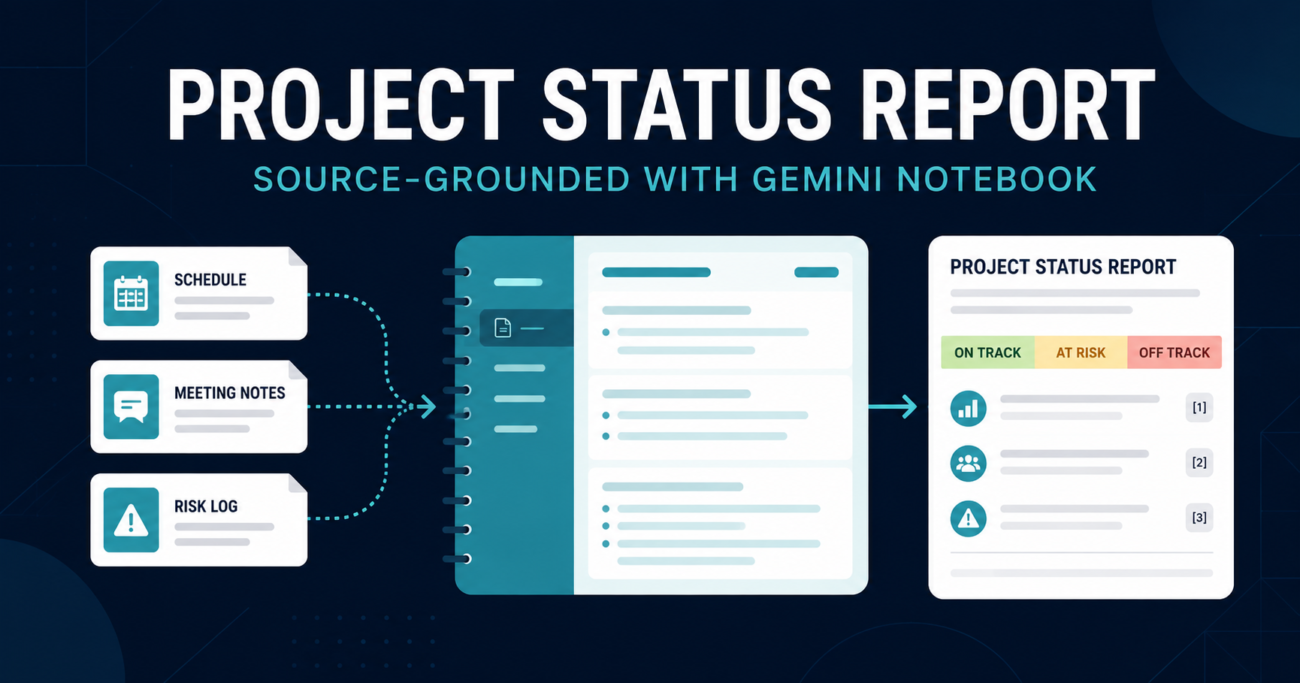
Project updates are scattered across meeting notes, schedules, risk logs and vendor documents. The project manager must reconstruct what changed, then defend a report whose evidence is hard to trace.
Gemini Notebook—Google’s new name for NotebookLM—can reduce that assembly work. Instead of asking a general chatbot to remember your project, you create a notebook around selected source files. Its answers are grounded in those sources and include citations that let you inspect the supporting passage.
That does not make the report correct. A citation proves where a statement came from; it does not prove the source is current or authoritative.
This tutorial builds a repeatable workflow without making AI output the source of record.
Quick Answer
To create a project status report with Gemini Notebook:
- Create one notebook for the project or reporting period.
- Add approved sources such as the project charter, current schedule, meeting notes, decision log, risk register and prior status report.
- Name and date sources consistently.
- Ask Gemini Notebook to identify the reporting period, completed work, upcoming milestones, decisions, risks, issues and missing evidence.
- Verify each material statement through its citation.
- Ask it to draft the report in your standard structure.
- Resolve contradictions and missing updates outside the tool.
- Have the accountable project manager approve the final version.
The strongest use is evidence synthesis. The weakest use is treating the generated narrative as automatically complete.
Best For—and Not Ideal For
Best for
- Projects with recurring status reports and a defined set of documents
- Project managers who spend time consolidating notes and logs
- Small teams without a sophisticated portfolio-reporting platform
- Preparing a first draft for human review
- Comparing this week’s evidence with a previous report
- Creating stakeholder summaries from approved source material
Not ideal for
- Real-time reporting when the source files are not refreshed
- Automatically updating Jira, Microsoft Project or a financial system
- Replacing the official project schedule, RAID log or decision register
- Making contractual, financial, safety or personnel decisions
- Projects whose data is not approved for the selected Google account and plan
- Reporting environments that require fully automated, auditable data pipelines
Gemini Notebook is a synthesis workspace, not a project-management database. If the inputs are stale, the polished output will still be stale.
What Gemini Notebook Can Use as Sources
Google’s current product documentation lists support for Google Docs and Slides, PDFs, text and Markdown files, web URLs, pasted text, public YouTube URLs and audio files. Current help documentation also lists Word, PowerPoint, CSV, Google Sheets, images and EPUB among supported source types. Google states that an individual source can contain up to 500,000 words or an uploaded file can be up to 200 MB; availability and limits can vary by account and feature.
For a weekly project report, a practical source set is:
| Source | What it contributes |
|---|---|
| Project charter or scope | Objectives, boundaries and owners |
| Current schedule | Dates, dependencies and planned progress |
| Meeting notes | Completed work, blockers and discussion |
| Decision log | Approved direction and decision owners |
| Risk and issue log | Exposure, mitigation and owners |
| Prior status report | Continuity and previous commitments |
| Budget snapshot | Approved figures and variance |
Do not upload every project file merely because the tool accepts it. More sources can create more contradictions. Include the smallest set that supports the report and identify which source governs when records disagree.
Before You Start: Set the Reporting Rules
Write these four rules before opening the tool:
- Reporting cut-off: For example, Friday at 3:00 p.m. local time.
- Authoritative source order: For example, approved change log over meeting notes; current schedule over prior report.
- Required sections: Overall status, accomplishments, upcoming work, milestones, risks, issues, decisions and support needed.
- Rating definitions: Define exactly what green, amber and red mean. Do not let AI invent the thresholds.
Example:
- Green: No approved milestone is forecast to slip and no unresolved high-impact issue threatens delivery.
- Amber: A milestone or deliverable is at risk but recovery remains feasible within approved tolerances.
- Red: An approved milestone, budget tolerance or critical outcome is breached or forecast to be breached without intervention.
Use the definitions established by your project governance.
Step-by-Step: Build the Status-Report Notebook
Step 1: Create a dedicated notebook
Open Gemini Notebook and create a new notebook. Use a specific title such as:
Customer Portal Implementation — Weekly Status — Q3 2026
Avoid a notebook called “Project Documents.” The title should tell a reviewer which initiative and reporting context it represents. For long projects, decide whether one controlled notebook will be refreshed weekly or whether each reporting period requires a separate snapshot. A weekly snapshot is easier to audit; a persistent notebook is easier to maintain.
Step 2: Prepare and sanitize the source pack
Collect only the files required for reporting. Confirm that you are permitted to use them with the account and plan selected by your organization. Remove secrets, unnecessary personal information, credentials and data outside the reporting purpose.
Use a naming convention that makes recency visible:
01_Project_Charter_Approved_2026-06-12.pdf02_Integrated_Schedule_2026-09-02.xlsx03_RAID_Log_2026-09-02.xlsx04_Steering_Notes_2026-08-28.docx05_Status_Report_2026-08-26.pdf
File names are not cosmetic. They help the human reviewer—and sometimes the model—distinguish a current record from a superseded copy.
Step 3: Add sources and confirm coverage
Add the prepared files. Then ask:
List every source in this notebook, its apparent date, what project-reporting information it contains, and any signs that it may be outdated, incomplete or superseded. Do not draft a status report yet.
Compare the answer with your expected source checklist. If the risk register is missing, fix the source pack rather than asking the AI to compensate. If two schedules conflict, establish which one is authoritative.
Step 4: Create an evidence table before drafting prose
Ask for structured evidence first:
For the reporting period August 27–September 2, 2026, create a table with these columns: report section, fact or change, source date, citation, owner, due date, confidence, and missing information. Use only selected sources. Separate confirmed facts from proposals or assumptions. If evidence conflicts, show both versions and do not resolve the conflict yourself.
This is the most important step. Drafting polished prose too early hides gaps. A table exposes them.
Review each material item. Open citations for milestone dates, budget statements, critical risks, issue status and decisions. A citation should support the exact claim, not merely point to a related document.
Step 5: Identify changes since the prior report
Ask:
Compare the current evidence with the previous status report. Identify: commitments completed, commitments still open, new risks, changed risk ratings, newly overdue actions, milestone movement, decisions made, and decisions still required. Quote no more than a short phrase from any source and cite every finding.
The previous report is context, not proof of current status. If last week predicted completion and no current source confirms it, the correct result is “not confirmed,” not “completed.”
Step 6: Challenge the evidence
Use an adversarial check before asking for the final draft:
Act as a skeptical PMO reviewer. Find unsupported claims, inconsistent dates, missing owners, overdue actions, optimistic wording, risks without mitigation, and statements that appear copied from the prior report without new evidence. Return a correction list only.
This prompt does not guarantee detection, but it changes the task from summarization to quality control. Resolve the flagged items with the relevant owner or source system.
Step 7: Draft the status report
Once the evidence is clean, use a controlled prompt:
Draft a weekly project status report for executive stakeholders using only verified evidence in this notebook. Use these sections: executive summary; overall status with rationale; accomplishments; next-period priorities; milestones; risks; issues; decisions required; and help needed. Keep the executive summary under 120 words. Use direct, neutral language. Do not infer completion, ownership, dates, budget status or RAG rating. Insert [OWNER INPUT REQUIRED] wherever evidence is missing or conflicting. Preserve citations in the working draft.
The placeholder requirement matters. A useful assistant should expose uncertainty, not smooth it over.
Step 8: Apply a human approval checklist
Before publishing, confirm:
- The reporting cut-off and period are correct.
- Every milestone date matches the authoritative schedule.
- Completed work is supported by current evidence.
- Risks are distinct from active issues.
- Each risk, issue and action has an owner.
- Changes from the previous report are explained.
- Budget language uses approved figures.
- The RAG rating follows your defined thresholds.
- Citations support the claims they follow.
- Confidential information is appropriate for the audience.
- All
[OWNER INPUT REQUIRED]markers are resolved. - The accountable project manager approves the report.
Copy the approved output into your reporting system or template. Keep the system of record authoritative.
A Practical Example
A portal project’s meeting notes say testing “should start Monday,” the schedule says Tuesday, and a vendor forecasts the test environment for Monday evening. A generic summary may incorrectly announce a Monday start. The evidence-first workflow should preserve Tuesday as the governed date, identify Monday as a proposed date and flag the environment handoff as a dependency. The project manager still confirms which record is authoritative.
Pricing and Usage Limits as of September 2, 2026
Gemini Notebook is available without a paid plan with standard usage limits, and eligible Google AI or Workspace subscriptions provide higher limits or expanded features. Google changed the consumer usage model on September 2, 2026: limits are now compute-based, reflecting factors such as prompt complexity, models, conversation length and features used. Google says quotas can refresh every five hours until a weekly limit is reached. Its current help page describes AI Plus at two times standard limits, AI Pro at four times, and AI Ultra at either five or twenty times AI Pro depending on the subscription.
Check Settings → Usage in Gemini Notebook and verify the limits available to your account; Google notes that they may change.
For organizations, compare the current Google Workspace plan page and contract rather than assuming that a consumer Google AI plan provides the governance your business requires. Pricing, promotions and regional availability change; this article intentionally does not hard-code a seat price.
Privacy and Data Considerations
For personal accounts, Google states that uploaded sources are not used to train its foundational generative AI models unless the user provides feedback. Its documentation warns that when feedback is submitted, associated prompts, uploads, sources and outputs may be collected to understand the issue.
For Workspace accounts, Google states that uploaded files, chats and model outputs are not reviewed by human reviewers or used to improve generative AI models. Google also provides administrative controls for enabling the service; eligible editions can have additional security and compliance capabilities.
Do not collapse these statements into “nothing ever leaves the company.” Cloud processing still occurs, plan terms differ, and your organization remains responsible for authorization, retention, access, records and contractual requirements. Before using real project documents:
- Use a company-managed account where policy requires it.
- Confirm Gemini Notebook is an approved tool.
- Apply your AI data-classification rules.
- Limit sources to the reporting purpose.
- Check notebook sharing before adding confidential material.
- Avoid submitting sensitive content through feedback.
- Follow client, contractual, public-records and residency requirements.
Common Mistakes
- Uploading stale exports: Put the export time in the file name and refresh sources deliberately.
- Drafting before checking evidence: A fluent narrative can hide gaps. Build the evidence table first.
- Treating citations as validation: A citation shows provenance; it does not make the source accurate, approved or current.
- Letting AI assign status colour: Provide governed red, amber and green thresholds, then validate the result.
- Using the notebook as the system of record: Keep schedules, RAID items, decisions and financials in controlled systems.
- Measuring only drafting time: Include source preparation, correction and approval in your before-and-after measurement.
How to Test This Workflow Safely
Start with one low- or moderate-risk project and two reporting cycles. Measure:
- Manual preparation time before the pilot
- AI-assisted preparation and review time
- Number of unsupported or incorrect statements found
- Number of missing updates exposed
- Reviewer revision count
- On-time publication rate
Use AIXYZ’s 30-day AI pilot guide if you want a structured evaluation. If your organization has not established approved tools and data boundaries, begin with the AI acceptable-use policy template rather than uploading live project records immediately.
Frequently Asked Questions
Is Gemini Notebook the same as NotebookLM?
Yes. Google has renamed NotebookLM to Gemini Notebook. Older documentation, bookmarks and discussions may still use the NotebookLM name.
Can Gemini Notebook create a weekly project status report?
Yes. It can synthesize selected project sources into a draft and provide citations. A project manager should still verify completeness, resolve conflicting evidence and approve the final report.
Does Gemini Notebook connect directly to project-management tools?
This tutorial does not assume a live connection. Export the approved schedule, risks or work items, then add the files as sources. Direct integration availability depends on the product, account and organization configuration.
Are Gemini Notebook citations always correct?
No. Citations make verification easier, but reviewers must confirm that the cited passage supports the exact claim and that the source itself is current and authoritative.
Can I upload confidential project documents?
Only if your organization, contract and applicable rules allow the specific data, account, plan and configuration. Use a managed account where required, minimize sources and check sharing and retention settings.
Should I create one notebook per project or per week?
Use one per week when auditability and point-in-time evidence matter. Use a maintained project notebook when continuity and lower administration matter. In either case, date every source and remove or clearly identify superseded material.
Does Gemini Notebook replace project-management software?
No. It helps analyze and summarize sources. It does not replace controlled scheduling, task management, budgeting, issue tracking or approvals.
Final Takeaway
Gemini Notebook can make weekly reporting faster, but speed is not the main benefit. Its real value is forcing a project narrative back toward source evidence.
The reliable sequence is: curate sources, confirm coverage, build an evidence table, test contradictions, draft the report, verify citations and obtain accountable approval. Skip those controls and you may produce a beautiful report that is wrong. Follow them and the tool can reduce assembly work while improving the questions a project manager asks.