Business training video no longer requires a studio, but it still requires judgment. AI can propose scripts, narration, scenes, captions and translations. It cannot guarantee current policy, accurate demonstrations or learner understanding.
The right tool depends less on which model generates the most cinematic clip and more on the work you need to complete.
Converting Google Slides differs from producing avatar-led courses, editing screen recordings or summarizing a policy pack.
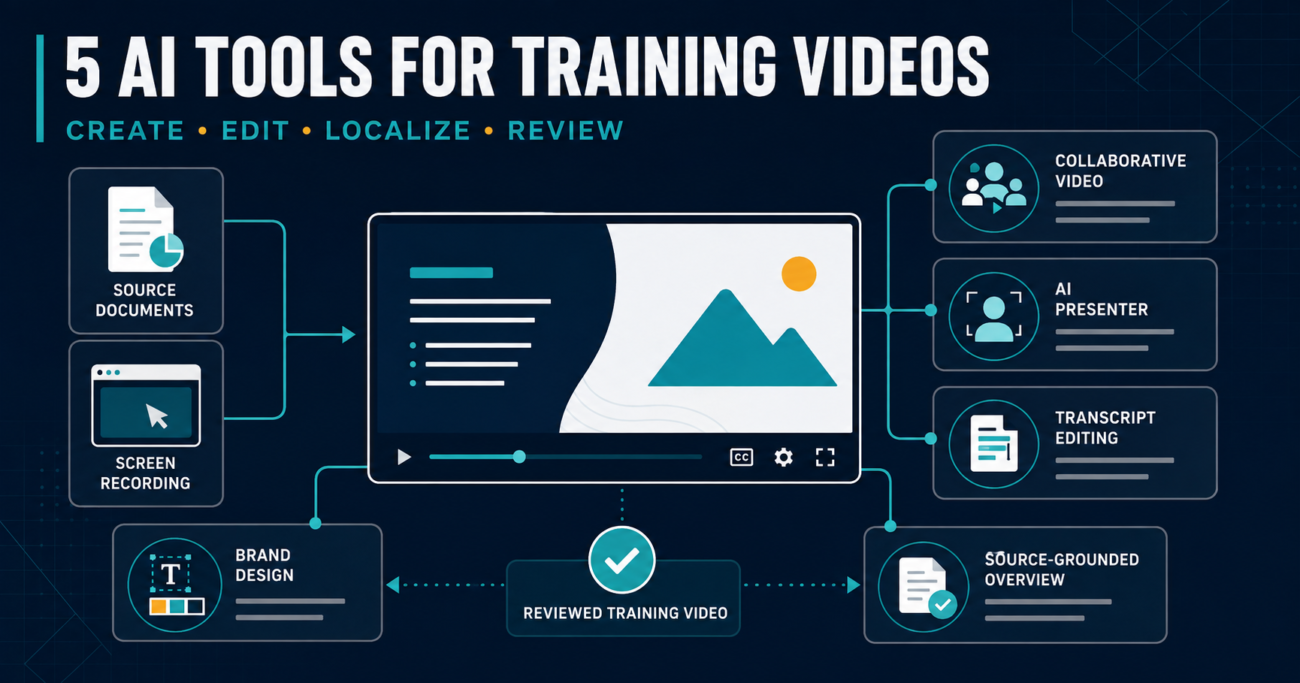
This roundup compares five tools against real business-training jobs. Features, limits and public pricing were checked against official vendor information on September 4, 2026.
Quick Answer
| Tool | Best for | Starting public price* | Main limitation |
|---|---|---|---|
| Google Vids | Workspace-native collaborative explainers | Included with eligible Google accounts/plans | Advanced Gemini features depend on plan |
| Synthesia | Avatar-led and multilingual training | Free; Starter $29/month | Credit and video-minute limits |
| Descript | Screen recordings and editing spoken content | Free; paid from $16/month | Better for editing than fully automated instructional design |
| Canva | Branded short training and visual explainers | Free; Pro $180/year | AI allowance varies by feature tier |
| Gemini Notebook | Source-grounded video overviews | Standard access available; paid plans raise limits | Limited control over final instructional structure |
*Public US pricing or access information as displayed September 4, 2026. Taxes, promotions, currencies, billing frequency, AI allowances and enterprise terms vary.
Best overall for a Google Workspace team: Google Vids
Best for presenter-led training without filming: Synthesia
Best for editing demonstrations and recorded instruction: Descript
Best for visual branding and social-friendly training: Canva
Best for turning approved sources into a quick overview: Gemini Notebook
How We Evaluated the Tools
This editorial assessment compares requirements that matter in operational training:
- Can the tool create a useful first draft from existing material?
- Can a subject-matter expert edit the script and scenes?
- Does it support captions, narration or localization?
- Can teams collaborate and apply brand standards?
- Are the output and source claims reviewable?
- Are plan limits and governance requirements understandable?
- Does it fit a repeatable production workflow?
A training video succeeds when it helps someone perform a task correctly.
1. Google Vids: Best for Workspace-Native Training
Google Vids is an AI-powered video creation and editing application connected to Google Workspace. Its “Help me create” workflow can use a prompt and referenced Drive documents to generate an outline, scenes, script, stock or generated media, music and voiceover.
Google also converts Slides into Vids: each slide becomes an editable scene, while Gemini can generate scripts, voiceovers, animations and music. Current documentation lists multiple aspect ratios, screen recording, AI avatars and generated or edited clips for eligible accounts.
Best for
- Teams already working in Google Drive and Slides
- Internal process explainers and project communications
- Collaborative review by non-video specialists
- Converting an approved presentation into narrated training
- Short screen-recorded demonstrations
Not ideal for
- Organizations outside the Google ecosystem
- Complex timeline editing or professional post-production
- Buyers who assume every Gemini feature is included in every Workspace plan
- High-volume localization that needs specialized translation governance
Practical example
A project manager can import an approved 12-slide change-management deck, use Gemini to propose narration, record a two-minute system demonstration, then ask the process owner and communications lead to review the same Vids file. This reduces handoffs, but the team must still verify every instruction against the live system.
Pricing and plan note
Basic Vids features are available with a Google Account; Gemini features require eligible Google Workspace or Google AI plans. Confirm AI generation, avatars and limits for your exact plan.
Verdict: Choose Google Vids when collaboration and existing Workspace content matter more than advanced video production.
2. Synthesia: Best for Avatar-Led Multilingual Training
Synthesia converts scripts into presenter-style videos with AI avatars and voices. It advertises voiceovers in 160+ languages; Enterprise includes one-click translations into 80+ languages, brand kits, SAML/SSO, collaboration and SCORM export.
This makes it the most specialized option in this list for structured corporate learning, policy communication and repeatable presenter-led modules.
Best for
- Employee onboarding and compliance explainers
- Consistent presenter-led content without cameras
- Training libraries requiring multiple languages
- Teams that need SCORM export at enterprise level
- Updating script-driven videos when procedures change
Not ideal for
- Screen-heavy product demonstrations that require detailed cursor editing
- Buyers who want unlimited production on an entry plan
- Training where a real leader, instructor or customer voice is central to credibility
- Scenarios where synthetic presenters may reduce trust
Practical example
An HR team can generate an avatar-led safety module, then localize it for distributed employees. Native-speaking reviewers remain essential.
Pricing as of September 4, 2026
- Basic: $0 per month and up to 10 video minutes per month
- Starter: $29 per month when billed monthly; 10 video minutes per month
- Creator: $89 per month when billed monthly; 30 video minutes per month
- Enterprise: custom pricing and plan-specific usage
Shared credits apply across AI features, so video minutes do not describe all consumption.
Verdict: Choose Synthesia for scalable presenter-led training, but budget by monthly production volume and localization workflow—not only seat price.
3. Descript: Best for Screen Recordings and Spoken-Content Editing
Descript treats recorded audio and video like editable text. Its features include screen recording, transcription, captions, filler-word removal, Studio Sound, clips, AI speech, translation and video generation.
This is valuable when the source material is a real demonstration, webinar, interview or instructor recording rather than a prompt.
Best for
- Software tutorials and screen demonstrations
- Editing trainers who are comfortable revising text
- Removing mistakes, pauses and filler words
- Turning long recordings into short learning clips
- Adding captions and improving weak audio
Not ideal for
- Teams seeking a one-click learning-management system
- Fully synthetic avatar production at enterprise scale
- Users who expect AI editing to understand which procedural steps are mandatory
- Projects that require traditional high-end colour, motion or audio workflows
Practical example
A specialist records a portal walkthrough, removes failed attempts by deleting transcript text, applies Studio Sound, adds captions and creates a troubleshooting clip.
Transcript edits can create abrupt visual cuts; watch the complete export.
Pricing as of September 4, 2026
Descript offers Free access; paid plans start at $16 monthly. Limits vary across transcription, generation and AI speech, so compare them with expected usage.
Descript states project information is confidential and it is SOC 2 Type II compliant. Enterprise adds administration, SSO and SCIM. Still review recordings for sensitive information.
Verdict: Choose Descript when real recordings are the raw material and editing speed matters more than synthetic generation.
4. Canva: Best for Branded Visual Training
Canva combines templates, stock media, a multi-layer video timeline, captions, brand tools and AI features in one browser-based design environment. Current video features include Highlights, Enhance Voice, Magic Video, AI voice, text-to-video and image-to-video. Canva’s “Create a Video Clip” can generate a 16:9 clip of up to eight seconds with synchronized audio, then place it into a broader design.
That eight-second figure matters: generative clips are ingredients, not complete training programs.
Best for
- Branded explainers, onboarding snippets and internal campaigns
- Teams already producing presentations and social graphics in Canva
- Short videos with templates, icons, captions and stock footage
- Repurposing one concept across video and static formats
- Non-editors who need approachable design controls
Not ideal for
- Long, technical screen demonstrations
- Buyers expecting unlimited AI generation
- Evidence-heavy training that must trace every claim to a source
- Organizations needing advanced learning standards on lower plans
Practical example
A small business can create a three-minute “How to handle a customer complaint” video using a branded template, approved script, stock scenes, recorded or AI narration and captions. The same design system can produce a one-page checklist and social-sized reminder.
Pricing as of September 4, 2026
Canva offers a Free plan. Canva Pro is listed at $180 per year for one person in the US. Canva’s AI usage now uses shared allowances across Standard, Premium and Ultra tiers. Its pricing page estimates that Pro provides up to 2,000 Standard, 200 Premium or 20 Ultra uses when one tier is used alone; mixing tools or running complex requests changes consumption.
Do not translate these estimates into a guaranteed number of finished videos. Storyboarding, clip generation, voice, image creation and revisions may draw differently from the allowance.
Verdict: Choose Canva when brand consistency and visual accessibility matter more than specialized training-video automation.
5. Gemini Notebook: Best for Source-Grounded Video Overviews
Gemini Notebook—formerly NotebookLM—can create a Video Overview from selected notebook sources. Google describes the feature as a way to distill complex material into a visual deep dive. This is different from a timeline editor: the core value is synthesis from documents, websites, presentations, audio and other supported sources.
Best for
- Fast orientation to a policy or research pack
- Internal study aids and pre-training briefings
- Explaining a controlled set of source documents
- Teams already using notebooks for research
- Creating a first-pass overview before formal production
Not ideal for
- Precise scene-by-scene brand control
- Step-based software instruction requiring an exact interface demonstration
- Publishing without subject-matter review
- Replacing an LMS, completion tracking or formal assessment
Practical example
A policy owner can add the approved policy, FAQ and implementation guide to one notebook and generate a Video Overview for employees before a live workshop. Reviewers must check whether the video omitted exceptions or overemphasized one source.
Usage note
Google’s current upgrade page lists three Video Overviews per day at standard access, with higher limits on paid tiers; limits are subject to change. Mobile availability may be more limited. Google states that uploaded sources are not used to train foundational generative AI models unless a personal-account user submits feedback; Workspace protections and terms differ by account.
Verdict: Choose Gemini Notebook for rapid, source-based orientation—not as the final production environment for controlled training.
For a related project-management use case, see How to Create a Project Status Report with Gemini Notebook.
Which Tool Should You Choose?
Start with the source and delivery requirement:
| Your situation | Recommended first tool | Why |
|---|---|---|
| Training begins as Google Slides or Drive documents | Google Vids | Native content reuse and collaboration |
| You need a consistent presenter in many languages | Synthesia | Purpose-built avatars, dubbing and enterprise learning features |
| You already recorded the instructor or screen | Descript | Text-based editing, transcription and audio cleanup |
| Brand, templates and multi-format reuse matter most | Canva | Integrated visual design and accessible editing |
| You need a fast overview of approved sources | Gemini Notebook | Source-grounded synthesis |
Do not buy all five. That creates overlapping subscriptions, fragmented files and inconsistent production standards. Select one primary editor and add a specialist only when a defined gap justifies it.
A Practical Production Workflow
Regardless of tool, use this sequence:
- Define one learning objective: what should the viewer do afterward?
- Identify the authoritative sources and their owner.
- Draft the script and mark every instruction needing verification.
- Choose the format: recorded demonstration, designed explainer, avatar lesson or source overview.
- Generate a low-resolution or limited draft before spending credits.
- Have a subject-matter expert verify accuracy.
- Check captions, pronunciation, pacing, contrast and screen readability.
- Test the video with three representative learners.
- Publish with an owner, revision date and source link.
- Update or retire it when the underlying process changes.
If this is your first AI-video initiative, use AIXYZ’s 30-day AI pilot guide and AI data-classification framework before uploading internal material.
Privacy, Rights and Governance Questions
Before selecting a platform, ask:
- May employees upload the source documents and recordings?
- Does footage include customers, minors, confidential screens or personal information?
- Who owns generated scripts, voices, avatars and video assets?
- Was each cloned voice or personal avatar created with valid consent?
- Can administrators manage access and remove former users?
- Are retention, deletion, training-use and subprocessors acceptable?
- Does the output need captions, transcripts or audio description?
- How will viewers identify synthetic presenters where disclosure is appropriate?
- Who approves translations and regulated content?
- How quickly can an outdated video be removed?
A vendor’s security certification is evidence about controls, not approval for your use case. Evaluate the exact plan and configuration.
Frequently Asked Questions
What is the best AI tool for employee training videos?
Google Vids is a strong option for Workspace teams, Synthesia for avatar-led multilingual modules, and Descript for recorded demonstrations. The best choice depends on source material, editing needs and governance.
Can AI create a complete training video from a document?
Google Vids, Synthesia and Gemini Notebook can generate substantial drafts from prompts or sources. A subject-matter expert should verify instructions, exceptions and current policy before publication.
Which AI video tool is best for small businesses?
Canva is approachable for branded explainers, while Descript is strong for editing real recordings. Use existing subscriptions and actual monthly production volume when comparing cost.
Which tool is best for multilingual training?
Synthesia is the most specialized option in this list for avatar-led and translated training. Use native-speaking reviewers for accuracy and cultural suitability.
Can I create AI training videos for free?
All five options provide some form of free or standard access, but exports, AI features, minutes, credits and business controls vary. Free access is appropriate for testing, not automatically for confidential production work.
Are AI-generated training videos accurate?
Not automatically. AI can omit conditions, invent transitions or misread a source. Require source control, subject-matter review and learner testing.
Do these tools replace a learning-management system?
No. They create or edit content. An LMS manages assignment, completion, assessment and training records. Synthesia offers SCORM export on Enterprise, but deployment and recordkeeping still require a learning environment.
Final Recommendation
Choose according to the dominant production job:
- Google Vids for Workspace-native collaboration
- Synthesia for scalable avatar training
- Descript for recorded instruction and screen demos
- Canva for branded visual explainers
- Gemini Notebook for rapid source-grounded overviews
The hard truth is that AI reduces production friction, not accountability. A fast video with an outdated instruction is worse than no video because it scales the error.
Call to Action
Select one real training topic, create the same 60–90-second draft in your two strongest candidates and compare total editing time, accuracy corrections, caption quality, brand fit, reviewer effort and cost. Buy only after the pilot exposes the complete workflow.